Sunday, June 12, 2011

IE8 quirk- CSS file requested twice when you use relative protocol path

In IE8, if you use a relative protocol path for CSS file, it is downloaded twice. In the screenshot below I have used an absolute path for master.css file and relative path for master1.css. As you can see, two requests are made for master1.css file and only one request for master.css. There is no such issue for javascript file. The jquery file uses relative path in this example and only one request is made.


Therefore, make sure you are using an absolute protocol path for CSS file and not relative protocol path.

Reference object in a local variable

Recently, I have been playing around with javascript and I have to say it is fun. I was trying to append an element to a document and to my surprise, if you do not reference an object in a local variable, it takes longer to append, the more elements you have.

Following is a code that I used for testing.


The result of this test is shown in the table below:

The more elements you append, the longer the execution time is when you do not use a local variable. In the table above, it took almost 4 seconds to append 100000 elements when no local variable was used and almost 3.2 seconds when a local variable was used. This is almost 800ms saving. For elements less than equal to 10, the execution time was similar or I did not see huge difference.

In my code I have a local variable(Wholebody) which is assigned a reference to document.body. Rather then using document.body, I am using Wholebody in the for loop.

Note: I tested this code against IE 8.0. The result might be different on different browsers.

Thursday, April 28, 2011

Threadsafe protocols in LoadRunner

Question: 
How to findout which protocols are threadsafe in LoadRunner?

Answer:
Except for Sybase-Ctlib, Sybase-Dblib, Informix, Tuxedo and Peoplesoft-Tuxedo protocols, all other protocols are threadsafe (see the screenshot below of LR9.5 Vugen User Guide).


Alternatively, you can check each protocol as follows to findout whether it is threadsafe or not.
1: Go to ...\LoadRunner\dat\protocols folder
2: Open up an appropriate .lrp file (i.e. QTWeb, Tuxedo)
3: Search for "EnableThreads". If this parameter value is set to 1 then it is threadsafe else it is not.
    For example: QTWeb has EnableThreads=1
                          Tuxedo has EnableThreads=0

Thursday, March 3, 2011

Gomez - Data summary information may be incorrect

If you have used Gomez tool for last mile performance testing, you may have noticed that metrics on Test Breakdown(Data Summary) page does not add up. In the image below you will notice that the time to first byte (1stByte column) is more than the total page response time(Response Time column).

The way Gomez is calculating these values is by adding up response time of same component in all the requests together. For example, In the above image, the DNS time is 0.144 but if you look at the waterfall chart below, you will notice this time is sum of DNS compoment response time of two requests.

You can also have time to first Byte or content download time to be more than the page resonse time. Therefore, I suggest a caution need to be taken when interpreting results from GOMEZ or even presenting them to someone else.

Gomez - Uploading transaction Script to Gomez portal

If you have recorded a business process using GOMEZ Recorder and you want to upload it to their server(so that you can run transaction last mile tests), this is how you have to do it.

Steps:
1: Download GOMEZ Recorder from Gomez Portal.

2: Record the business process using GOMEZ Recorder. Make sure the script replays correctly and once done, click on File->Save (remote) button.


3: If you are uploading the script for first time, you will get a login popup window. Enter your Login details (UserName and Password) that you use to login to GOMEZ portal.

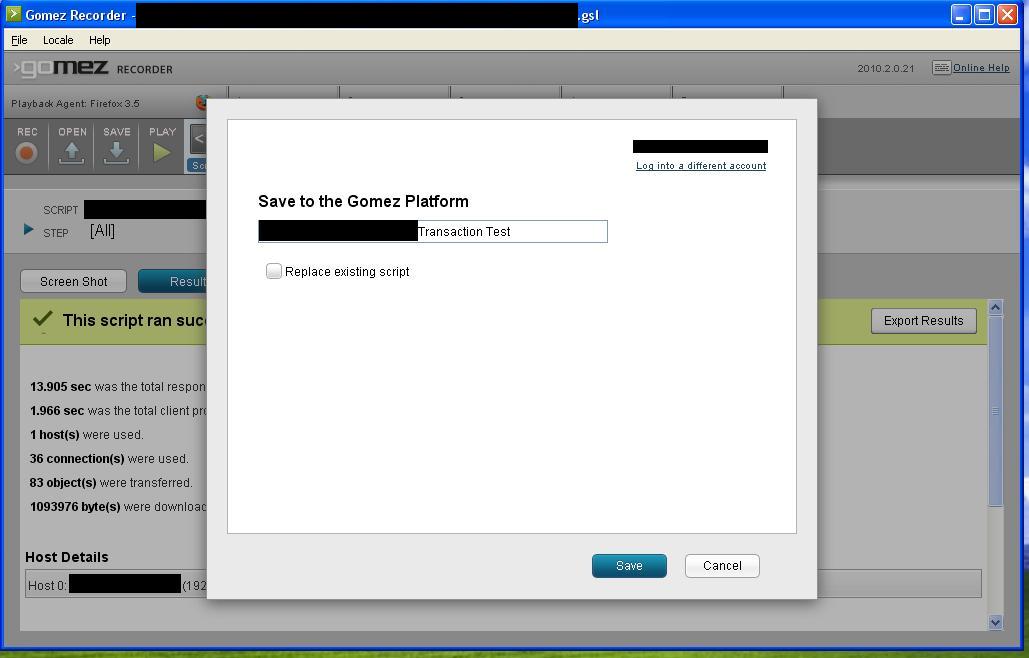
4:Once your credentials are verified, a "Save to Gomez Platform" popup will be displayed. Enter the script name and click Save button.


5: Login to the GOMEZ portal and navigate to "Add Last Mile Tests" page.

6: Click on Script dropdown button and there you go, You have your uploaded transaction script.